HubSpot Homepage
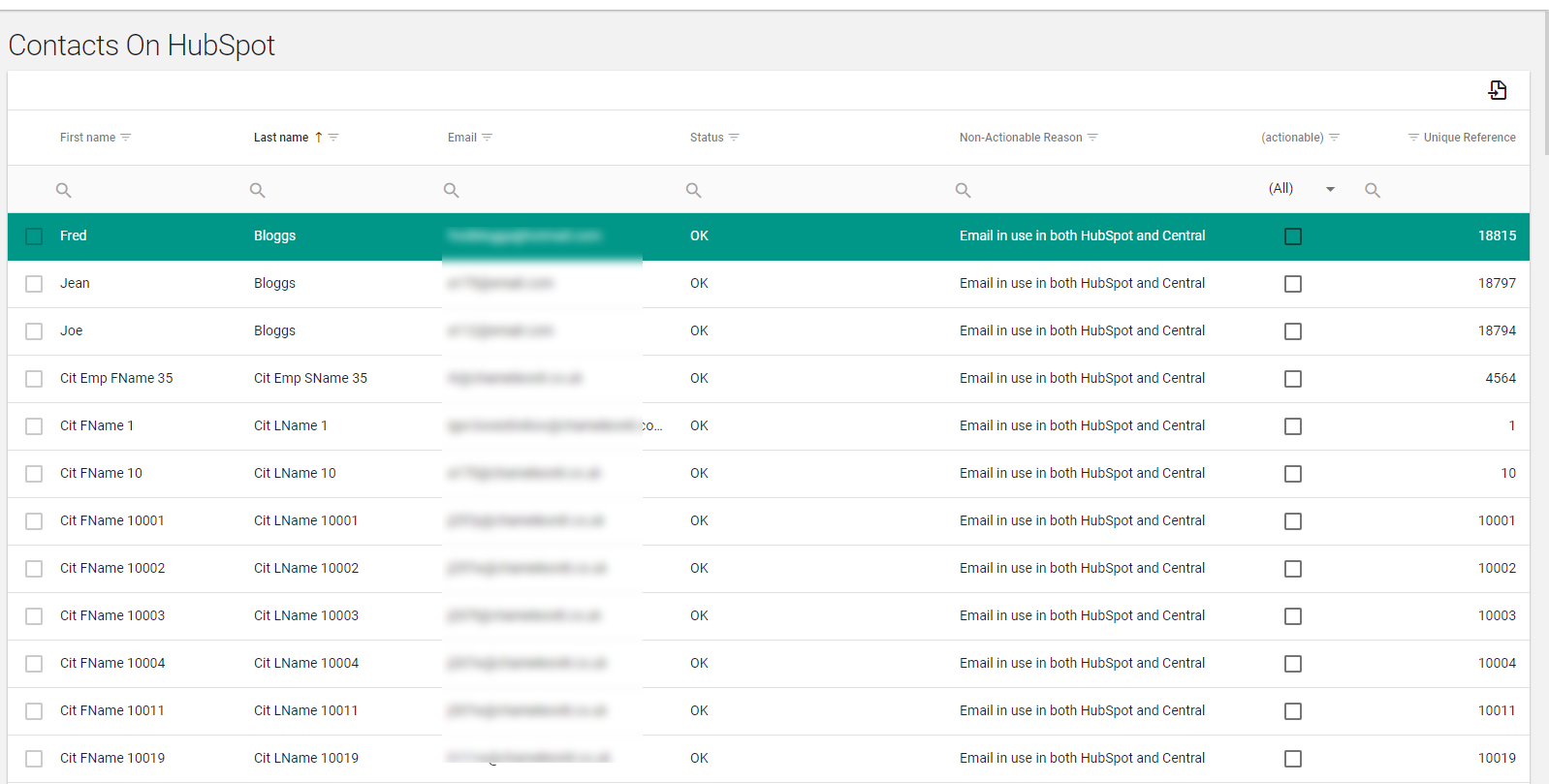
HubSpot homepage provides functionality to create new HubSpot contacts in Central and new Central contacts in HubSpot. The match between HubSpot and Central is done on Primary Email Address in Central vs. email address in HubSpot. All contacts with the same email address are assumed to be the same records.
In Sunrise you are able to move contacts to Central from hubspot and vice versa.
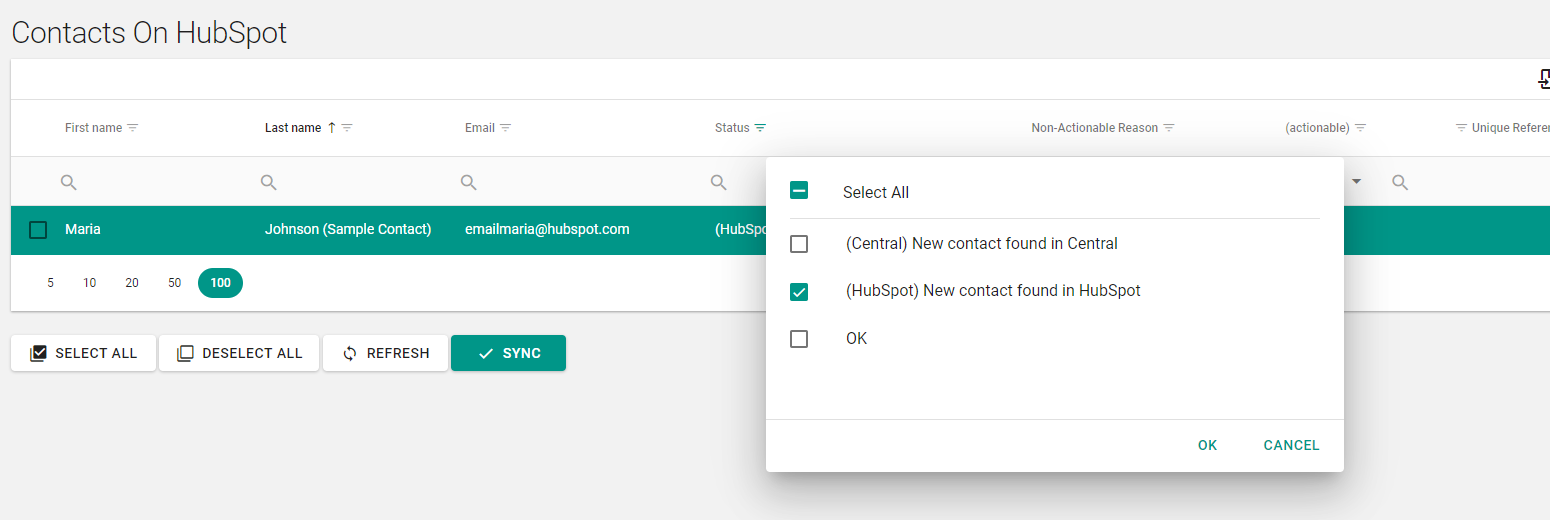
These options are contained at the bottom. You can choose how many entries are displayed, which ones you want to select and then you can sync them when chosen.

All the contacts will appear. The Non-Actionable reason will show why contacts cant be transferred. You can see under status where the record currently is:

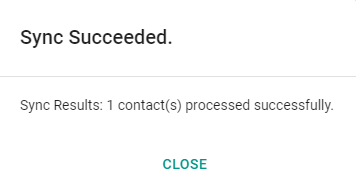
When you have successfully sync’ed a contact a pop up will appear with this message.
Synchronising New Central Contacts to HubSpot
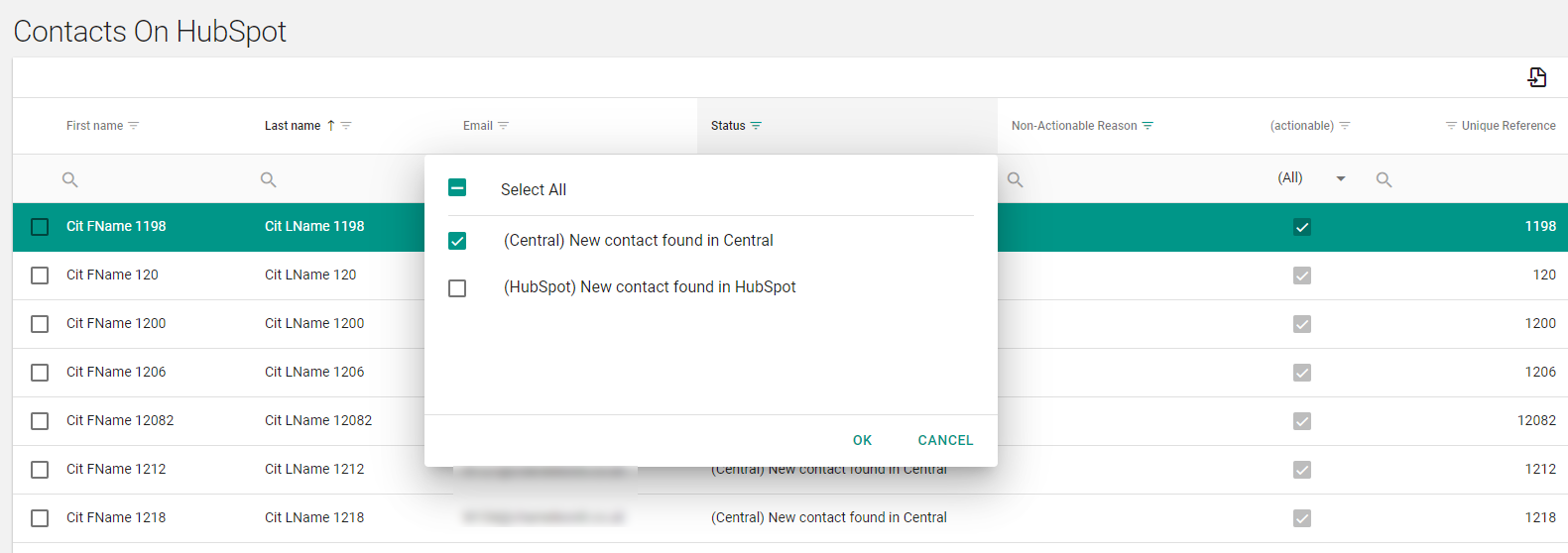
Load “Contacts on HubSpot” screen, select “Status” filtering column at the top and select “(Central) New contact found in Central” option – only new contacts in Central are listed and any actionable records will be created using First Name, Last Name and Primary Email Address information from Central.
Synchronising New HubSpot Contacts to Central.
Load “Contacts on HubSpot” screen, select “Status” filtering column at the top and select “(HubSpot) New contact found in HubSpot” option – only new contacts in HubSpot are listed. If records are actionable, you can create them in Central using First Name, Last Name and Email address from HubSpot. Please note, when creating contacts in Central (using HubSpot information) both primary email address and contact’s email are set.
Non-Actionable Contacts
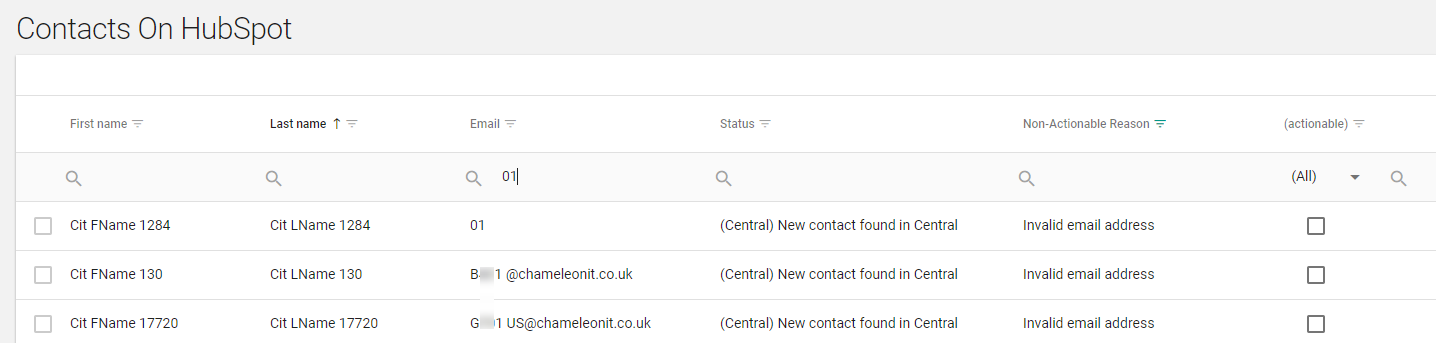
Some contacts in both Central and HubSpot could be in a non-actionable state – please resolve their issues before attempting synchronisation (see “Non-Actionable Reason” column).
- Invalid email address (applicable to Central contacts)
- First name is more than 50 characters long (applicable to HubSpot contacts)
- Last name is more than 60 characters long (applicable to HubSpot contacts).
Batch Synchronisation
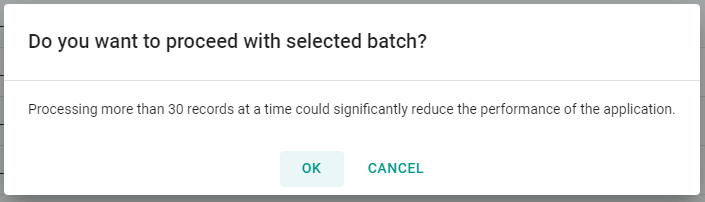
To batch synchronise records select a mode (either “(Central) New contact found in Central” or “(HubSpot) New contact found in HubSpot” in “Status” column, use “Select All” button and “Sync”. If you are getting a warning about synchronising more than 30 records at a time – it can be safely ignored if you are the only user of the homepage. Repeat the process for each page – see the number of pages under the grid, bottom-right.

Other Notes
Up to 5 Sunrise users per HubSpot account are supported.
For already synchronised records (Status column “OK” any changes to First/Last Names in either Central or HubSpot would not be transferred to corresponding destination system.